Friday, December 20, 2013

Last Day of the Month: Javascript

Calculating the last day of the current month or subsequent months is a common populated form field for quotesrot contracts where an expiry date is required.  Goes a little something like this:

Today's date in MM/DD/YYYY:
// today's date
var d = new Date();
var month = d.getMonth() + 1;
var day = d.getDate();
var year = d.getFullYear();
var vdate = month + "/" + day + "/" + year;

Last day of the next month:
// last day of next month
if (d.getMonth() + 1 == 12) {
  var nmonth = 1;
  var nyear = d.getFullYear() + 1;
  var lastday = new Date(nyear, 1, 0).getDate();
} 
else {
  var nmonth = d.getMonth() + 2;
  var nyear = d.getFullYear();
  var lastday = new Date(nyear, d.getMonth() + 2, 0).getDate();
}
var expdate = nmonth + "/" + lastday + "/" + nyear;

There are a dozen ways to get to this result and always interested in other ways to get the same info.

Sunday, July 7, 2013

Cyclemeter Upload to Strava with Google Apps Script

As a long time Cyclemeter user I have logged about 6000 off-road miles and love the app and it's feature set.  When Strava made it way onto the scene, I was impressed with the community and analytic features that were offered but since Strava has their own mobile apps I have waited long enough for Cyclemeter to add a direct auto-share to their app so I wrote a Google Apps Script to do this for me.

If you use GMail, you are in luck since Google give you Apps Script to add some major automation to a number of their services.  Here is how I did it...

Step 1: Setup Cyclemeter to email you the GPX link to your GMail account.  Go to More -> Settings -> Email Updates (turn on) ->Auto Send Settings -> Done ->Just add the GPX link to the email.


Step 2: Then in GMail setup a filter to label these emails "StravaUpload" by selecting specific information in the Subject.  In my case I used " Cyclemeter Cycle (Mountain)" so it only uploads my MTB rides and not my other activities like runs.  I am going to assume you know how to add filters and labels in GMail.


Step 3: Now the Script.  This part might be a stretch for some but I will share a simple way to do this.  Google Apps Scripts can exist on their own in Google Drive but to create them you need to connect the Google Apps Script to Drive by clicking on the "Connect More Apps" link at the bottom and searching for "Google Apps Script".  You can also create a Doc or Sheet and go to the "Tools" menu and select "Script Editor".  I write a lot of code for GAS so I use the direct method.  Either way, you can get into the script editor and add this function:

 function uploadToStrava() {  
  //Call GMail to look for StraveUpload labeled emails (should only be one)  
  var ulemail = GmailApp.getUserLabelByName('StravaUpload').getThreads();  
  //Quit if email is missing  
  if (ulemail.length != 0){  
   //Get only the first email in the matching array  
   var ulmessage = ulemail[0].getMessages();  
   //Get the entire body of the email  
   var ulbody = ulmessage[0].getBody();  
   //Calculate start position of gpx url  
   var ulbstart = ulbody.indexOf('http://share.abvio.com/');  
   //Calculate start position of extension of gpx  
   var ulbend = ulbody.indexOf('.gpx');  
   //Get only substring of link  
   var ullink = ulbody.substr(ulbstart, (ulbend - ulbstart+4));  
   //Fetch gpx file from url  
   var gpxfile = UrlFetchApp.fetch(ullink).getBlob();  
   gpxfile.getAs('application/gpx+xml');  
   var gpxname = gpxfile.getName();  
   gpxfile.setContentType('application/gpx+xml');  
   gpxfile.setName(gpxname);  
   //Send email to Strava Upload email with gpx attachment  
   MailApp.sendEmail( {  
    to: 'upload@strava.com',  
    subject: 'Upload to Strava',   
    htmlBody: "Upload attached.",  
    attachments: gpxfile  
   })  
   //Move Cyclemeter email to trash  
   ulmessage[0].moveToTrash();  
  }  
 }  

Since Cyclemeter does not create an attachment in the Auto Send options, I had to get the URL and get the attachment from the link.  Now we need this script to trigger daily... I also didn't care for it to parse a number of rides at once so I left out the looping for uploads for now. 

Step 4: Trigger the script to run at whatever interval you like.  I usually ride in the am so I had the script trigger between 9 - 10am but you can pick the interval you like.


Now I can complete my ride, hit Done in Cyclemeter and my email will send and once the trigger for the GAS runs, the email is evaluated, an email is sent to Strava's upload email with a GPX attachment and my ride shows up in Strava without me having to manually upload it.  Works for me but I hope Cyclemeter adds this into the app or simply adds email GPX attachments in their auto share settings.  Hope this helps you. ~Lou

Saturday, February 23, 2013

Migrating from Posterous to Blogger


At the news that Twitter was buying Posterous, it was only a matter of time before the end would be announced, so I started reevaluating another solution for blogging.  I had written off Blogger for years since it was pretty primitive and lacked features that mattered to me.  With the further integration of Google + and clients on most mobile devices, I decided to go Google and give it a try.

In order to move from Posterout to Blogger you need to use Wordpress as a middle man first and then use an open source app called Wordpress2Blogger conversion utility.  Here are the steps:

Posterous Export:

  1. Visit http://posterous.com/#backup
  2. Click on the "Request Backup" button next to the space you want to backup.  Depending on the size of the blog this could take minutes or hours.  My 200 post blog took about 10 min or so.  When it is ready you will receive an email.
  3. Go back to http://posterous.com/#backup and click the download button to receive the zip file of your space.  Although this appears to be in a format for Wordpress to import, the WordPress2Blogger tool will not work directly on this file.
Wordpress.org Import/Export:
  1. Login to Wordpress.org 
  2. Create a new blog with the same name
  3. Go to Tools -> Import and select Posterous
  4. Select the Wordpress_export_1.xml file in the unzipped package download from Posterous
  5. Follow the instructions to import.
  6. Once complete, go to Tools -> Export and export the xml file.
Convert Wordpress Export:
  1. Visit http://wordpress2blogger.appspot.com/
  2. Click "Choose file" and select the xml file download from Wordpress
  3. Click Convert.  This will convert the file to a blogger import file
  4. Once complete, a file will download in the blogger format.
Blogger Import:
  1. Create your new blog with your blog's name
  2. Go to Settings -> Other and click on the "Import blog" link under "Blog tools".
  3. Select the xml file from Wordpress2blogger
  4. Start blogging on Blogger.
The process sounds elaborate but the process is pretty fast and I was able to move 4 blogs in about 30 minutes so after the first one it is somewhat routine.  There are some differences with Blogger but overall there seems to be ways to do most of what I did before without too much hassel.  I do miss the simplicity of Posterous but as you know it had it's frustrations as well.  ~Lou

Wednesday, February 13, 2013

Prep Ruby on Rails Apps for GitHub Publishing


Rails_on_github

When I started to publish code on GitHub I began searching for the best way to share my code without accidentially giving away my keys, passcodes or usernames. I tried to fork a version for publishing but branch history will still allow the public to see what was in previous versions. After trying a few methods, I opted to store all my passcodes in a *.yml file in config folder and just add it to the .gitignore. This required a few notes to let cloners know what to do with the code in the case they were to use their own keys directly.


Create a file under the ‘/config’ folder ‘ app_passwords.yml’

defaults: &defaults 
    app_key: my_app_key
    app_secret: my_app_secret 

development:
     <<: *defaults

test:
     <<: *defaults 

production:
     <<: *defaults

In order to load ‘app_passwords.yml’ it needs to reside at the top of the ‘/config/initializers’ folder. I placed a file called ‘01_app_passwords.rb’ (I added the 01 to put it at the top of the file list since initializers are processed in order).


In ‘config/initializers/01_app_passwords.rb’

MY_PASSWORDS = YAML.load_file("#{Rails.root}/config/app_passwords.yml")[Rails.env]

Now that the passwords are loaded into the Rails envionment, they can be called from the controller.


In ‘my_controller.rb’

APP_KEY = MY_PASSWORDS['app_key']
APP_SECRET = MY_PASSWORDS['app_secret']

Now that the app’s sensitive data is located in a single place, the ‘app_passwords.yml’ can be added to your ‘.gitignore’ file and it will not be committed to GitHub (as long as you don’t have other commits to your code history). There are now two options for your README for letting users who download your code to change in order to use it with their own passwords.
  1. Change ‘MY_PASSWORDS['app_key’]‘ and 'MY_PASSWORDS['app_secret’] with their own keys and passwords. or….
  2. Add their own ‘app_passwords.yml’ to the ‘/config’ folder.
This seems to get the worry out of the way and let you code and commit without worry (well at least after the first commit and check!). ~Lou

Saturday, December 31, 2011

Dropbox Automator IFTTT

Dbautomator
A new tool hit the web this past week that really caught my eye since much of my device ecosystem is connected via Dropbox.  Dropbox Automator is a cloud service that uses the Dropbox API to monitor folders and have file additions trigger a number of automation scripts powered by Wappwolf.  IFTTT, IF This Then That, is a fundamental principal to any piece of code and this reminds me of Automator on the Mac how you build the logic.

The workflow is simple:
  1. Go to dropboxautomator.com
  2. Log into your Dropbox account and authorize Wappwolf (developer)
  3. Choose a folder… (pick a folder to monitor when a file is added) … NEXT
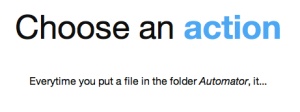
  4. Choose an action(s)…
For Documents you can…
  • Convert to PDF (powered by conv2pdf.com)
  • Summarize
  • Translate
  • PDF to TXT
  • Upload to Slideshare
  • Sign PDF (electronic sig)
For Pictures you can…
  • Upload to Facebook or Flickr
  • Downscale, Rotate
  • Add text, Photo effects, Stamp logos/maps 
  • Stamp a "Dislike" on the image
Any file you can…
  • e-mail
  • Zip
  • Save to another Dropbox-folder
  • Rename
  • Upload to FTP
  • Encrypt/Decrypt
Update….
  • Tweet
  • Set Facebook status
My favorite part of this service is that actions can be coupled.  For example, you can drop a picture into a folder, Dropbox Automator can then stamp your logo in the lower right (or wherever), upload the photo to an FTP site and you can place it in your blog.  If you spend enough time looking over the list of baked in automation scripts, there are a number of solutions that can bridge gaps in many of the services you currently use.

If you are a developer, you can build scripts by creating a SOAP webservice (example code provided as well) and add it to the Wappwolf.com action marketplace.  Manuel Berger is the guy behind the service and I think this is a great start to an awesome idea.  

Couple of important mentions in my testing so far.  
  1. CREATE YOUR FOLDERS FIRST!  You must log into Dropbox and create a folder to use before starting your automation since the current build of Dropbox Automator does not allow you to create folders.  
  2. BE PATIENT!  There is a slight delay in the trigger so be patient!  When the automation completes, the service will create two sub folders in your trigger folder (processed and result).  This takes the file you add, moves it to the processed folder and the result will be placed in the "result" folder when complete.  I am assuming this is done to avoid any looping issues that could come up. 
So try it out and start automating…  ~Lou

Dbauto-folderDbauto-action

Sunday, August 14, 2011

Motorola Surfboard SB6580 Playing Nice With Apple's Airport Extreme

Motorola-sbg6580

This past week my Zoom cable modem was dropping my connection a lot due to the increased speeds that Cox was delivering in my Premium Internet package. The current service should deliver around 25Mpbs down and about 15Mbps up but I was not seeing anywhere near that.  I had the Cox technician come out to adjust some of the connections inside and outside the house and he recommended using a Docsis 3.0 compliant cable modem.  I did some research and found the Motorola Surfboard SBG-6580 which has a DOCSis 3.0 cabel modem coupled with a dual Wireless N router that can have both a internal and guest wireless broadcast.

Inside the house I have the first generation N Wirelless Apple Airport Extreme which has been functioning as my router for the past 3 or so years.  First I read a couple of posts on just disabling NAT on the Surfboard and keeping my router configuration on the Aiport the same.  This worked alright but was prone to losing connectivity since there is really no way to completely disable the router portion of the Surfboard. This resulted in both devices being disconnected and then the Surfboard being put back online followed by the Airport.  

To avoid this issue, I opted to do the following:

  1. Use the Motorola router's NAT (aquiring the public IP from the ISP)
  2. Setup the Airport to hand out a series of addresses on the same submet (10.0.x.10 - 25)

Below are the setup screens for the settings in both the Surfboard and Airport:

NatDhcpAirportFf3920ae06a13865915c943296d50f0a

Once the Surfboard's modem connects, it will establish that verified handshake with your ISP, then the router gets the public address and distributes an address to the Airport.  The airport is given a specific range of address which get marked STATIC on the Surfboard and all your devices are now talking to the Airport without any disruption.  This has been bomber even if the power goes out and the system comes back up.  Below are my connection stats:

Screen_shot_2011-08-11_at_8

Thursday, August 4, 2011

ChromeBook Experiment, and It Looks Promising

Chromebooklogo

On June 15, 2011 Google's official Chrome operating system was finally released and hit the market on a couple of models by Samsung and Acer.  ChromeOS is a lightweight operating system built on a striped down version of Linux to run the Chrome browser.

Since I live on Google and our company is also on Google Apps, I wanted to see how feasable it was to function on a device so forward thinking.  Obviously this is not a replacement device for a superuser or someone who has specific needs like running SolidWorks or doing long form video editing.  What it does offer is a sleak device that boots in 8 seconds, (6 to the login screen) from the off state and gets you on the Internet to do what we all do there, browse, research, email, socialize, share...and the list goes on and on.

With so many companies attempting to move today's desktop applications like video editing, engineering tools like CAD and other CAE applications,  even going as far as hosting full sofware developement environments to offload the resources need by the user. 

Personally I have been interested in this for a couple years and had purchased a eee701 on Amazon for about $140 USD and installed ChromiumOS, the open source project of Google's ChromeOS, in order to get a feel for how this could be.  The early days were rough, as many open source tools are at first, but I have to say Google has really moved this product forward and it is a pretty good V1 product.  Don't get me wrong, there is still room for improvement but instead of focusing on what an internet browser only operating system can't do, focus on what it can.  

So over the next month or so I am going to put the 11" Acer Chromebook to the test and see how it stacks up to other secondary computing devices like tablets and smartphones. So far the only major issues I have run into would be:

  • GoToMeeting is not supported
  • Skype is not yet supported for the full experience
  • VPN for Cisco (although the current build does support L2TP/IPSEC (with shared key or user cert)
So far most of my usage is very doable on the Chromebook.  Server management for Linux is simply done via SSH by doing a CTRL+ALT+T and that lands you in terminal and away you go.  Remote Desktop for Windows can be done with certain extensions but does require a VPN connection so I am personally out of luck till the CISCO VPN support is available, which Google promises.  More information to come in the weeks to follow. ~Lou

Saturday, July 2, 2011

Google+ Push Notification via iOS

Image
This week Google launched their new social product Google +, which is currently in a "Limited Field Testing" mode and the iPhone native app is currently "Under Review".  Although you can receive notifications via email and if your iPhone is setup to get push email you essentially get a push notification.  If you are like me you use GMail and don't like a clutter of notification messages in your inbox so you create a filter to remedy that. 

I used to use Boxcar on the iPhone when many of my native apps didn't have push support but now most of them have push notifications natively.

I re-downloaded Boxcar on my iPhone and setup a push alert on an Email account.  This will then send a verification email that contains a new Boxcar email address for this new push service.  Once this is complete I just did the following:
  1. Setup a new GMail filter that contains "@plus.google.com" in the FROM address
  2. Check "Skip Inbox" (this keeps your inbox clean!)
  3. Check "Forward to" and setup a Forwarding address for the Boxcar address you received in your confirmation email.
  4. Optional: Check "Apply Label "Google+" (a label I created for all Google+ content)
Once this is set, make sure your Google+ notifications are set to email on what you want to be notified and now these notifications will be pushed in the regular fashion to your iOS device without cluttering up GMail.

Obviously once the official Google+ app hits the Apple App Store it will probably have this feature.  Once Google gets out of this field testing phase and opens up an API we will have many other options but for now this seems to be the easiest way to get this working.  Funny how this makes me want to dump the iPhone and switch to Android right now! ~Lou

Saturday, December 25, 2010

Recording Skype into Garageband

I have been podcasting since late 2005 and I have been using Garageband since I first started. It works well and since a majority of the podcasts that I produce are just my voice, it is pretty straightforward to use.  
When I do occasionally have guests on the show, Skype has been the go to option and recording was always done with directly out of my computer and back into my mixer via a phono cable to XLR.  There was always a bit of feedback so here is how I grab the sound directly from Skype and dump it into Garageband into it's own track without the feedback.

My hardware:

Mic - Heil PR40 

My software:

Garageband - multi-track recording studio
Sound Flower - Free multi track virtual mixer
Line In - Audio passthrough device for routing an audio input to an output of your choice.
Skype - Audio/Video conference service

My Setup:

In order to do this without feedback (using an analog phono cable into my Fast Track Pro) I had to route each application correctly so the each party can hear and speak while recording my sound to track 1 and the Skype output to track 2.  So here is how you do it. (keep in mind you can substitute whatever source your mic and headphones are to work with your setup.).  The specifics are below but here is an outline of what we are doing:
Bkjc7b1_garageband-skype

Garageband:

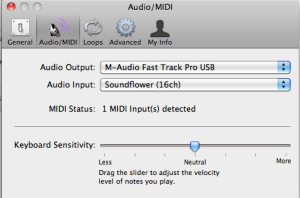
Preferences:
Screen_shot_2010-12-23_at_2

My Track: Make sure the track you record to is set to use SoundFlower 16ch since Skype will output stereo and use both channel 1&2 so the 2ch option will not work if you want to get both your Skype feed and your voice on separate channels. In my case I set my track to use Mono channel 3, which we will configure later in Line-In.
2screen_shot_2010-12-23_at_2
Skype Track: This track will be set to either Mono 1 or 2 since I only want mono and not stereo 1/2, although you could set it to that for stereo recording.  You will also want to turn on the Monitor so you will be able to hear that sound in your headphones.  I set mine to "No Feedback Protection" so I would not keep getting the warning.
1screen_shot_2010-12-23_at_2

Line-In Setup:
Screen_shot_2010-12-23_at_2

Advanced settings: Once you set where the sound will go, make sure you click on "Pass Thru" on the main Line-in screen.
Screen_shot_2010-12-23_at_2

Skype Setup:
4screen_shot_2010-12-23_at_2

System Preferences (Mac):
Here you will set the input (your mic, in my case Fast Track Pro) and the output to where your headphones are (Fast Track Pro in my case)

Input:
3screen_shot_2010-12-23_at_2

Output:
0screen_shot_2010-12-23_at_2

Simple huh? Well a bit of a cluster but works well.  I might resort to going optical out into S/PDIF on the Fast Track Pro just to go digital from the source but this setup was free! ~Lou


Monday, November 22, 2010

Lock Down! Enable SSL on Apache2 with Signed Certificates

Ssl_login

Enabling SSL on Apache2 is actually pretty easy and out of the box will enable self-signed certificates.  This will suffice for testing but if your goal is to lock down sensitive information and be trusted by users, getting an SSL certificate for your domain will be key.  When I setup my FedOne server about a year ago, I had to go through getting certificates for federation to work with the Google's Sandbox.

Enable SSL in Apache2:

I am assuming you already have Apache2 installed and own a domain name with postmaster/webmaster access.  Here are the steps to get the SSL module of Apache2 running:

1 - Enable ssl:

$: a2enmod ssl

Out of the box this will use self-signed certiicates which will light up most broswers with a red "This site's security certificate is not trusted!".  The self-signed certificates are great for testing especially since Ubuntu 10.04 which contains it's own SSL conf file. 

2 -  Once the SSL is enabled, restart Apache:

$: sudo /etc/init.d/apache2 restart

Now that SSL is enabled and https://yourdomain.com is using the self signed certs, we need to generate a certificate request file and a private key from our server and use a 3rd party signer to get our certificate.  


Generate CSR and Server Key:

1 - I used the same script to generate both the private key and certificate request.

$: sudo nano make-csr.sh

2 - Enter the following code:

#!/bin/bash

NAME=$1

if [ "$NAME" == '' ]

then

echo "$0 " 1>&2

  exit 1

fi

openssl genrsa 2048 | openssl pkcs8 -topk8 -nocrypt -out $NAME.key

openssl req -new -nodes -sha1 -days 365 -key $NAME.key -out $NAME.csr

3 - Make the script executible:

er$: sudo chmod a+x make-csr.sh

3 - Run the script, adding the name you want on the end.  I choose "server":

$: sudo ./make-csr.sh server

This generated two files:

server.key
server.csr 

StartSSL&trade;


Validate Domain with StartSSL:

I choose StartSSL since I used them during my FedOne setup and it was rather easy and free to boot.  Here are the steps:

1 - Go to http://www.startssl.com and create an account.  You will need to have a registered domain and access to the postmaster or webmaster of the domain in order to establish a certified connection.

2 - Click on "Sign-up" to begin the registration process.  This will have you fill out some information and will have you verify with an email.  Once verified a certificate will be installed in your browser (doesn't work on Chrome in my tests).

3 - Click on "Validations Wizard" and select "Domain Name Validation" (Continue)

4 - Type in your domain name (Continue).  An email verification will be sent and you will paste in the validation code to get your domain validated.

Request Certificate from StartSSL:

1 - Click on "Certificates Wizard" and for Certificate Target select "Web Server SSL/TLS Certificate (Continue)

2 - Click on Skip since we are going to use our own CSR from the above step (Skip)

3 - Copy the contents of the "server.csr" generated above by typing:

$: cat server.csr

* Make sure the contents of the certificate request includes the header and footers of the CSR with all the dashes! (Continue)

4 - The screen will appear with the contents of the newly generated SSL certificate.  Copy the contents and add it to a new file called "server.crt" on the server.

$: sudo nano server.crt

Configure Apache2 to use Signed Certificates:

I decided to create a directory to place my certificates in the Apache2 directory. You can place them anywhere you like.

1 - Make a directory in Apache2

$: sudo mkdir /etc/apache2/ssl

2 - Copy the certificate (server.csr) and private key (server.key) to the new directory

$: sudo cp server.crt /etc/apache2/ssl
$: sudo cp server.key /etc/apache2/ssl

3 - Point Apache to use your new files in the default-ssl file:

$: sudo nano /etc/apache2/sites-available/default-ssl

Make sure the SSL Engine is on and the proper paths are reflected:

SSLEngine On
SSLCertificateFile /etc/apache2/ssl/server.crt
SSLCertificateKeyFile /etc/apache2/ssl/server.key

4 - Restart Apache

$: sudo /etc/init.d/apache2 restart

Once restarted, Apache will now sign with your new certificates and users will see the green "https" in their browser bar.  Depending on what setup you require, you may need to still set your document root for your website and do a mod-rewrite in your .htaccess file to forward all your http traffic to https.

In my case, I was running my StatusNet instance with mixed mode SSL, protecting only sensitive pages since Meteor doesn't post via https yet without an unsupported proxy setup. ~Lou

Sunday, November 7, 2010

Google Boxes up Wave, Survival via Federation

Wiab
When Google announced that Wave would be shut down at the end of the year, I was extrememly disappointed since I believed in the movement of communication beyond email and all the other modes of collaboration.  For me, the saving grace was the announcement that Google would be working hard to build upon their open source FedOne project to incorporate all the the web UI that Google's own Wave had to date.  This new project is aptly named "Wave in a Box".

Back about a year ago, I went through the rigors of getting a FedOne Wave server installed.  Although the Wave Protocol had been released at Google I/O in May 2009, there was not much excitement without being able to federate with the development sandbox.  The other issue was nobody had access till the preview lauched, except in the sandbox, and all the invite hell that followed.

Once Google opened up federation on wavesandbox.com many of us started trying to run our own servers so we could test out this cool new federation protocol.  Most of the setup was pretty easy but certificates, which are required for federation with Google's Wave Sandbox, can be quite the ordeal to get working properly.  Without completely re-outlining every step, I thought I would outline my setup since I recently moved my wave setup to another server and had to walk thought the steps again, refreshing my memory.

Server OS: Ubuntu 10.10 Server:

1 - Get necessary packages to setup the Wave-in-a-box environment:

$: sudo apt-get install mercurial ant default-jdk mongodb eclipse 

NOTE: With Ubuntu 10.10 you need to get the repository for Java first:

 $: sudo add-apt-repository ppa:sun-java-community-team/sun-java6

 $: sudo apt-get update


2 - Get current Wave-in-a-Box source:

$: mkdir wave-development

$: cd wave-development

$: hg clone https://wave-protocol.googlecode.com/hg/ wave-protocol


3 - Build Wave-in-a-Box:

$: cd wave-protocol

$: sudo ant

Building Wave-in-a-Box is pretty straight forward however there are a few things to know if you intend to federate with other Wave-in-a-Box instances, especially when authentication is used.  Two major components, not mentioned above, are required to establish secure signing between servers and to allow some of the live collaboration. You will need to install an XMPP server and have your certificates built for the domain you are going to use for federation.  I also needed to add a few things to my host file and setup SRV records on my domain registrar to get all to work correctly.

Below are some links to help you in getting all of Wave-in--Box setup and working:

Setup: http://www.waveprotocol.org/wave-in-a-box/setting-up

Building: http://www.waveprotocol.org/wave-in-a-box/building-wave-in-a-box

Installation: http://www.waveprotocol.org/code/installation

XMPP step by step (Openfire): http://www.waveprotocol.org/federation/openfire-installation

Federation Certificates: http://www.waveprotocol.org/federation/certificates

Certificate Issuer: http://www.startssl.com/

A great step by step by Ralf Rottman: http://www.24100.net/2009/11/federate-google-wave-sandbox-with-your-own-fedone-server/

Once you are setup you can start trying out your newly, self-hosted Wave server. WiaB comes with two client interfaces.  The first is a terminal client located in the "wave-protocol" directory which can be used by typing:

./run-console-client.sh <username>  

Once inside you can type "/help" to see the available commands.

The other interface is web-based and works rather well.  This is the area that is under major development to bring it to parity with Google Wave's web UI.  By default it is accessible on port 9898 so you can access it by visiting http:/yourdomain.com:9898.  

Currently Federation is only open on other WiaB instances in which it is enabled and the developers sandbox at http://wavesandbox.com.  If you just want to try to set WiaB without federation, certificates and XMPP servers are not necessary.  You can then setup the server and install and build the source and run the server.  There is currently a config file for no federation that will allow you to test out the web UI quickly with very little headache.  Federation is key to the success of this platform in the long run so if you are serious about sustaining a Wave server, get federation running too! ~Lou

A Few Images:

Wiab_web_welcomeWiab_web_uiWiab-terminal

If you have questions or run into any issues, please leave a comment or send me a message:

Twitter: @gol10dr

Wave: gol10dr@googlewave.com

Monday, October 25, 2010

Customizing Ubuntu's SSH MOTD

Ubuntu_10
I recently updated my Ubuntu server from 10.04 LTS to 10.10 and towards the end of the update process a prompt is displayed requesting for removal of obsolete packages with the options yes/no/details. I decided to check the details screen and accidentally exited, killing the installer and not completing the removal of these packages.  (you can resume this with apt-get...)

Since this abrupt exit of my update process, my SSH MOTD (message of the day) which, by default displays the landscape sysinfo and available updates was static. Now every time I would SSH into the server, the login sysinfo was always the same and it showed that I had 311 updates that running and apt-get update then upgrade would yield no such update.  It also kept telling me that an update was required even though a reboot file was not present in:

/var/run/reboot-required

There are a couple of files that need to be changed in order to correct this static message. The first, which you should not edit but can clear since it is overwritten is located at:

/etc/motd

This file is updated with the MOTD info but removal of anything here will simply get rewritten with  updated infomation and anything located in the "tail" file.   Editing the MOTD tail will append the info pushed to /etc/motd.  Upon editing:

/etc/motd.tail

In my case the /etc/motd.tail contained the same static message that I was seeing in my SSH session. Clearing this or adding your own custom message will now display your correct landscape sysinfo and you new custom "tail" content. 

Note - If you clear the tail and reboot and immediately log in via SSH, you might receive a message saying "System information disabled due to load higher than 1" so wait about 10 minutes before logging in to see if you new MOTD will display correctly.  

You can also display the same welcome landscape sysinfo by running he following command:

/usr/bin/landscape-sysinfo


UPDATE:

Another thing I noticed is that my update-notifier module has somehow been removed so if you are noticing that your update notification from MOTD is not showing up, ensure that update-notifier in installed.

Saturday, October 2, 2010

Web App Navigation with Apache Aliases

Apache_software_foundation_logo_3074
This past week I installed ThinkUp, the open source creation by Gina Trapani, sponsored by Expert Labs and used by the White House to get statistics from various social networks like Twitter and Facebook.  The web application is very easy to install due to the nice web installer interface.  If you are interested in installing it yourself, you can follow the instructions here.

All the ThinkUp web app needed was to be dropped in a folder accessable from your website, given write access and have an empty mysql database and user to specify for the setup.  The easy way would be to create a folder in your root directory so you could access it by going to:

http://yourdomainname.com/webapp

In my case my Apache root is set to my StatusNet instance in my www root (ie. /var/www/statusnet) and I didn't want to place the ThinkUp app folder in my "statusnet" folder due to it messing with my upgrade workflow for StatusNet.

I opted to create a folder in my www root for Thinkup (/var/www/thinkupfolder) but since Apache's root was set to /var/www/statusnet, I needed to create a shortcut to this location. To do this I used an alias.  With your favorite editor edit:

/etc/apache2/sites-available/default

Add the following:

Alias /webapp /var/www/webapp/
<Directory /var/www/webapp>
Options Indexes MultiViews
AllowOverride All
Order allow,deny
Allow from all
</Directory>

You can visit Apache's site to learn how to restrict access and add other controls as well. Now you can keep your web apps separate but still access them from your domain root as a sub directory! ~Lou


Friday, September 24, 2010

Meteor showers Live StatusNet Updates

Screen_shot_2010-09-24_at_12
If you are a regular visitor to sites like Twitter or FriendFeed (not via a client) you may notice how these sites update as new feeds come in without requiring you to reload the webpage.  This type of behavior is delivered via technologies like Meteor.

StatusNet, the open source microblogging platform I use, supports a number of technologies within their plugin architecture, one of which is Meteor.  Only having a single server (for now) hosting my StatusNet site, I wanted to get Meteor running and coincide with Apache.  Since they both want to play in the HTTP playground known better was port 80, I needed to reconfigure Meteor to run.

Meteor Configuration:

- Follow all the setup instructions from the Meteor site.

- Before RUNNING Meteor you need to change Meteor's Config.pm to avoid colliding with Apache on port 80. (for example 8085 instead of 80)

Modifications:

- Edit /usr/local/meteor/Meteor/Config.pm to match the following:

  1. ControllerIP => '127.0.0.1', (This is empty by default, leave the port to 4671)
  2. SubscriberIP => 'ip.of.your.statusnet', (I used the IP of my domain name)
  3. SubscriberPort => '8085', (This is my example port mentioned above)

- An additional change was made to the meteor.js file to reflect my new port specification (8085 in our example)

Modifications:

  1. port: 8085 

- Run Meteor in the background, however in Ubuntu you will need to modify the "Meteord" file first.  This is detailed on step 3 in the Meteor installation site since they test in Fedora. (Also make sure /etc/init.d/meteord is set to executable (chmod +x meteord)

sudo /etc/init.d/meteord start

NOTE: You can also check that Meteor is running by running the following command:

sudo netstat -plunt

Home

 StatusNet Configuration:

Since StatusNet has an extensive plugin framework, adding technologies like Meteor is a snap!  A few lines in your Config.php and realtime will be live!  Here are the steps: (using our 8085 port)

  1. Edit your Config.php
  2. Add the Plugin: (this will communicate with your Meteor server and add the play/pause buttons to the top of your site's timeline)

addPlugin('Meteor', array('webserver' => 'yourdomain.com', 'webport' => '8085', 'controlserver' => '127.0.0.1', 'controlport' => '4671'));

      3. Release the daemons!
scripts/startdaemons.sh
NOTE: Depending on what plugins you have enabled a number of daemons will be launched.  If you have the daemons already running, you will need to stop and restart them: (from StatusNet instance root)
scripts/stopdaemons.sh
I have noticed that the queuedaemon typically doesn't get killed with the above script so I have manually killed it and relaunched. Usually I just look up the PID and kill it:
ps aux
sudo kill PID (replace PID with found process ID)

Additional Notes:

Currently there appears to be an issue with pages continuously reloading on Webkit browsers like Chrome and Safari. The good folks at StatusNet have fixed this issue with on their Meteor site at meteor2.identi.ca.  I just pulled down the 4 files located in their public_html folder and replaced mine, adjusting the port in their meteor.js file as mentioned above. ~Lou

Friday, September 3, 2010

RSS echos realtime with dlvr.it

Screen_shot_2010-09-03_at_8

For about 2 years now I have been using Twitterfeed to post my feeds into my StatusNet instance THE HEaRD.  With Twitter, Facebook pages, Buzz and other accounts on these services, getting my content to everywhere was a challenge.  Ping.fm is a great service for allowing to echo to many social networks out there and Twitterfeed would post to that so things seemed fine...for a while.

Twitterfeed started to have issues posting to Ping.fm about 4 months ago and the communication between these two services has yet to be resolved.  I moved my personal feeds to HootSuite, which can post to Ping.FM, but wanted to get back to posting direct to StatusNet again.

Bkja0oc_swh-social-network
Recently it appears that Twitterfeed is having issues posting content whose feeds reside on Feedburner.  Since I post from RSS to StatusNet directly, I am unsure where exactly that issue stems but this has been down for almost 3 weeks now. That was IT!  I pull in about 35 different feeds into an RSS account and this was a HUGE problem and Twitterfeed has been absent at best.  I decided to move on...

Enter, dlvr.it. Dlvr.it (Deliver it) builds upon the same premis as Twitterfeed but I think it takes all the features and reorganizes them for ease of routing RSS feeds to different accounts.  The best part is how you can setup global settings like a preferred URL shortening service and all accounts and feeds can be selected once created for future routes setup.  

Screen_shot_2010-09-03_at_9Screen_shot_2010-09-03_at_9Screen_shot_2010-09-03_at_9Screen_shot_2010-09-03_at_9Screen_shot_2010-09-03_at_9Screen_shot_2010-09-03_at_9

Currently dlvr.it offers posting to the following services:

The support staff (@dlvrit_support) is active on Twitter and they just named a new CEO so it appears this could be a service that is going to have some stiction.  Currently to join you add a feed and connect using OAuth with twitter or facebook but once the account is created, you can remove posting to those accounts if you don't want to use it.  I suggested having OpenID so you could use any provider like Google or even your StatusNet site (if you have the plugin enabled) and they responded via twitter. 

I have had this dialed in for the past few days and all is working wonderfully.  I was not aware of how unreliable Twitterfeed had become now that all is working again.  Twitterfeed was a great service and to their credit, their success has made them grow to a size that reliability has taken a downward turn.  Competition is great for the consumer and this is a perfect example.  Thank you dlvr.it for the great service and keep innovating! ~Lou

Sunday, August 22, 2010

Ubuntu Server Stats with Geektool

This week after playing a bit with Google CL and cURL posting to Twitter and StatusNet, I wanted to go the next step and have a way to keep an eye on my Ubuntu server that runs my StatusNet instance.

On the Mac there is a free tool called GeekTool which is a System Preferences module that allows for some interesting desktop integrations with files, images and shell scripts. There is also an extensive community around this tool where useful scripts have been built for a number of actions.  

Remote Server Stats:
In order to see that basic stats I wanted, I first needed to have a way to display these remote stats locally.  This required me to write a script (serverstats.sh) to ssh to my server and run a simple command on Ubuntu to display the same sysinfo that comes up on a connected session:

/usr/bin/landscape-sysinfo 

The first challenge is to use ssh in a script that doen't contain my password.  Typically an ssh session will prompt you with a password, so to keep the script secure and connect with a script, I need to create a public and private key for the ssh session to use.  To do this, I ran this on my Mac (system to monitor from) in ~/.ssh/:

ssh-keygen -t dsa

This will generate two keys, one public and one private.  The public key will be copied over to the remote server and the contents of the key will be stored in:

~/.ssh/authorized_keys

You can copy the contents running the following:

cat id_dsa.pub >> ~/.ssh/authorized_keys

The the authorized keys must be given access with the following:

chmod 600 ~/.ssh/authorized_keys

*For complete instructions check out: remy sharp's b:log post

Now I can simply ssh and I am into my remote server.  Obviously this would be an issue if my local machine is compromised but I could always revoke the key on the server if that was the case.  For my needs, it seemed to be a calculated risk!

Now I can go back to geek tool and setup my script to run and refresh. I used the Shell Geeklet and in the script area I added this:

#!/bin/bash

echo "THE HEaRD Ubuntu Server Stats:

"

ssh ip-address-of-your-server ./serverstats.sh

I am diggin' Geektool and look forward to doing more script automation in the future. ~Lou
 

Screen_shot_2010-08-22_at_2Screen_shot_2010-08-22_at_2Screen_shot_2010-08-22_at_2


Saturday, August 14, 2010

Posting Tweets via Command Line

After spending some time in the past week updating my Linux server and spending a lot of time in the command line, I wanted to take a look at methods to post to Twitter.  Since there are many parallels in the way you communicate to StatusNet, I decided to play with the options I found for twitter and modify them to post to StatusNet.

The most common method was using cURL, a free, cross-platform, command line utility that is already on most Unix based systems. Once installed you can post using this format:

'curl -u username:password -d status="Rockin' the tweet with cURL" http://twitter.com/statuses/update.xml'

Now that we know the setup you can type in your own "username" and "password" in the script and type your status between the "".  Rudimentary, but you get the idea.  I am no programmer, but I do enjoy taking snippets and adding automation to them, whether that be with an interface or patching piece together to get to the end result.
 
Screen_shot_2010-08-14_at_2
I like the simplicity of a little Mac app called Automator.  It is a way of graphically taking snippets or actions and daisy chaining them together to perform tasks.  I ties into many other applications on the Mac but also can be tied to scripts and other command line tools. 

I added a task to ask for text, which when the app runs it pops up a dialog and then passed it to a shell script task.  In the shell I used the "Pass input as arguments" and typed in my username and password into the cURL script I pasted in.  I replaced the actual post text between the "" with '$@', passing the entered text from the prompt into the script and running it.

I am going to play with a few other ways to automate this but I will leave it as a geek tool and leave the beautiful applications to be built by coders! ~Lou

Screen_shot_2010-08-14_at_2Screen_shot_2010-08-14_at_2